Learn How to Make Fast Money by Learning diffrent Strategies in Forex Trading and Different Investment Options
MT4 Tutorial for Beginners: Complete MetaTrader 4 Guide
MetaTrader 4, commonly called MT4, remains the most popular forex trading platform in the world despite being released nearly two decades ago. If you’re new to forex trading, chances are high your broker offers MT4, and learning to use it effectively is essential for your trading success.
This MT4 tutorial walks you through everything you need to know about MT4, from downloading and installing the platform to placing your first trade. By the end, you’ll be comfortable navigating MT4’s interface, customizing charts, adding indicators, and executing trades with confidence.
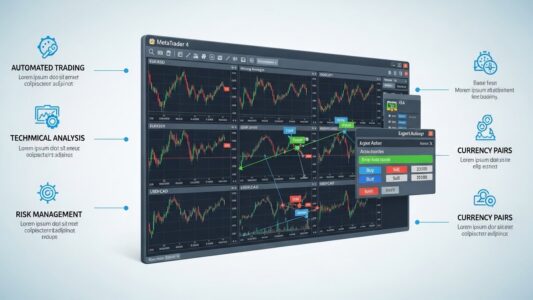
MetaTrader 4 is a trading platform developed by MetaQuotes Software in 2005. It allows traders to analyze financial markets, execute trades, and use automated trading strategies called Expert Advisors.
The platform’s enduring popularity stems from several factors. It’s free to use with most forex brokers, highly customizable, and supports automated trading through Expert Advisors. The interface, while initially intimidating, becomes intuitive once you understand its layout. Perhaps most importantly, MT4 works consistently across hundreds of brokers worldwide, meaning skills learned on one broker’s MT4 transfer seamlessly to another.
MT4 supports forex trading, CFDs on stocks, indices, and commodities. While MetaTrader 5 exists as a newer version, many brokers and traders still prefer MT4 for its simplicity and the vast library of custom indicators and Expert Advisors available.
How to Download and Install MT4
Getting MT4 on your computer takes just a few minutes.
Step 1: Choose Your Broker
MT4 itself is free, but you access it through a forex broker. Each broker provides their own branded version of MT4 that connects to their servers. Choose a regulated broker that offers MT4, then visit their website.
Step 2: Download the Installation File
Navigate to your broker’s platforms or downloads section. Look for “MetaTrader 4” or “MT4” and click the download button for Windows or Mac. The file is typically small, around 2-3 MB.
Step 3: Run the Installer
Once downloaded, open the installation file. Click “Next” through the installation wizard, accepting the license agreement. The default installation location is usually fine. The installer will download additional files during setup, which may take a few minutes depending on your internet speed.
Step 4: Launch MT4
After installation completes, MT4 should launch automatically. If not, find the MT4 icon on your desktop or in your programs folder and double-click it.
Step 5: Log In
When MT4 opens, a login window appears. Enter your account number, password, and select the server provided by your broker in your account confirmation email. Click “Login.” If successful, you’ll see your account balance in the Terminal window at the bottom of the screen.
MT4 tutorial On Understanding the MT4 Interface
When you first open MT4, you’ll see multiple windows and menus. Don’t worry about the complexity—each section serves a specific purpose.
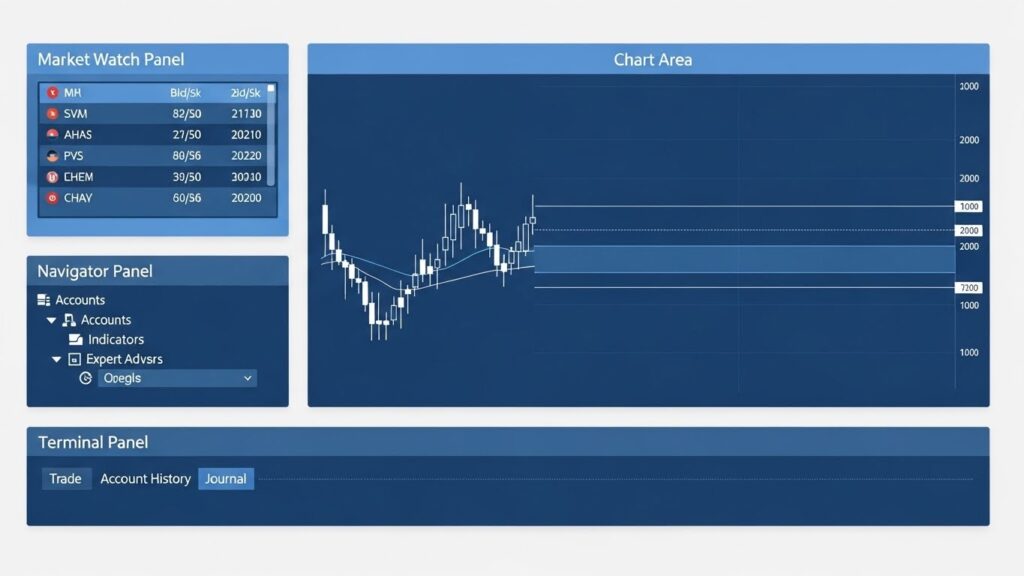
The Market Watch Window sits on the left side and displays available currency pairs and their current prices. Right-click in this window to show or hide specific pairs. This window is where you’ll drag pairs to create new charts.
The Navigator Window sits below Market Watch and contains your account information, indicators, Expert Advisors, and scripts. This is your toolbox for customizing charts and automating trading.
The Chart Window occupies the central area and displays price charts. You can open multiple charts simultaneously, each showing different currency pairs or timeframes. Each chart appears as a separate tab.
The Terminal Window at the bottom shows active trades, account history, and alerts. The “Trade” tab displays open positions, the “Account History” tab shows closed trades, and the “Alerts” tab contains any price alerts you’ve set.
The Toolbar at the top provides quick access to common functions like opening new charts, changing timeframes, adding indicators, and placing trades.
The Menu Bar above the toolbar contains File, View, Insert, Charts, Tools, Window, and Help menus. Most functions are accessible through these menus, though toolbar shortcuts are faster for common tasks.
Opening and Customizing Charts
Charts are where you’ll spend most of your time in MT4. Learning to open and customize them is fundamental.
Opening a New Chart:
There are three ways to open a chart:
Go to File → New Chart and select your currency pair
Drag a currency pair from the Market Watch window onto the chart area
Click the “New Chart” button on the toolbar and select a pair
Changing Timeframes:
MT4 offers nine timeframes, from 1-minute (M1) to monthly (MN). Click the timeframe buttons on the toolbar (M1, M5, M15, M30, H1, H4, D1, W1, MN) to change the chart’s timeframe. Each timeframe shows the same price data compressed differently.
Chart Types:
MT4 supports three chart types:
Bar Charts: Traditional OHLC bars showing open, high, low, and close
Candlestick Charts: Similar to bar charts but more visual, showing bullish candles in one color and bearish in another
Line Charts: Simple line connecting closing prices
Right-click the chart and select “Properties” or press F8 to change chart type and customize colors, grid settings, and other visual elements.
Zoom and Scrolling:
Use the plus and minus buttons on the toolbar to zoom in and out. Click and drag the chart left or right to scroll through historical data. Press Home to jump to the most recent price bars.
Saving Chart Templates:
Once you’ve customized a chart with your preferred colors, indicators, and settings, save it as a template. Right-click the chart, select “Template,” then “Save Template.” Give it a name. Now you can apply this template to any chart instantly by selecting “Template” → “Load Template.”
Adding and Using Indicators
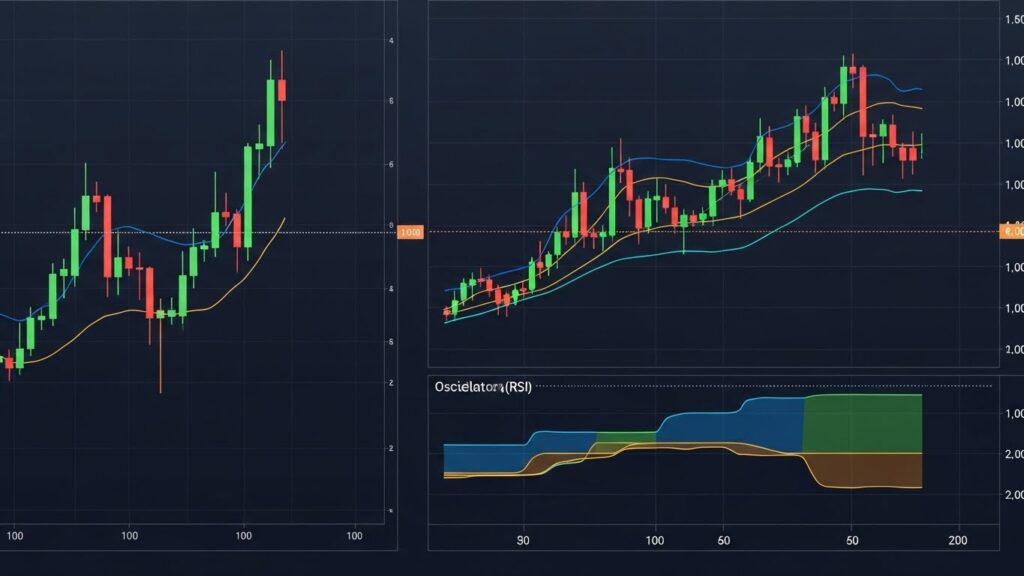
Technical indicators help you analyze price action and identify trading opportunities. MT4 comes with dozens of built-in indicators.
Adding an Indicator:
Click “Insert” in the menu bar, select “Indicators,” then choose a category (Trend, Oscillators, Volumes, etc.). Click the indicator you want. A settings window appears where you can adjust parameters, colors, and levels. Click “OK” to add it to your chart.
Alternatively, find the indicator in the Navigator window under “Indicators,” then drag it onto your chart.
RSI (Relative Strength Index) measures momentum and shows overbought/oversold conditions. It appears in a separate window below your price chart. For RSI trading strategies, see our RSI guide
Right-click on an indicator and select “Properties” or double-click it to modify settings. You can change periods, colors, line styles, and levels. Experiment with different settings to find what works for your trading style.
Removing Indicators:
Right-click the indicator and select “Delete” or right-click the chart, select “Indicators List,” highlight the indicator, and click “Delete.”
How to Place Trades on MT4
Once you’re comfortable with the interface and have analyzed a chart, you’re ready to place your first trade.
Opening the Order Window:
There are several ways to open the order window:
Click the “New Order” button on the toolbar
Press F9 on your keyboard
Right-click a chart and select “Trading” → “New Order”
Double-click a currency pair in the Market Watch window
Understanding the Order Window:
The order window displays several important fields:
Symbol: The currency pair you’re trading. Make sure this matches your intended pair.
Stop Loss: The price where your trade will automatically close to limit losses. Enter a price or leave blank to set it after opening the trade.
Take Profit: The price where your trade will automatically close to secure profits. Optional but recommended.
Type: Choose between “Instant Execution” (market order) or “Pending Order” (order that executes when price reaches a specific level).
Comment: Optional note for your records.
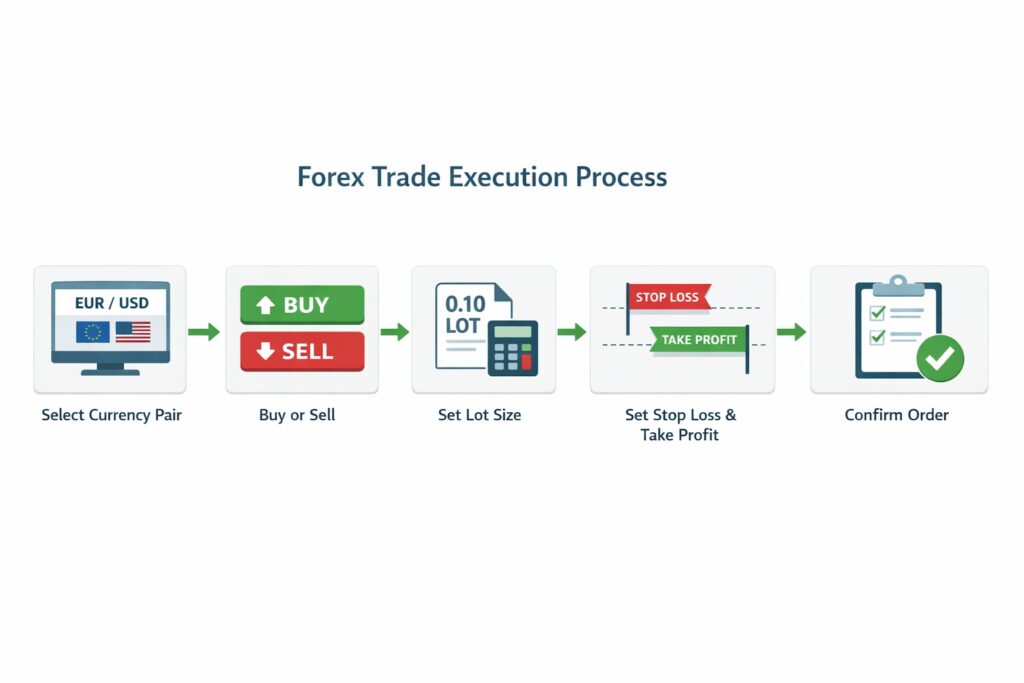
Placing a Market Order:
A market order executes immediately at the current market price.
Select your currency pair
Choose your lot size (start small, like 0.01)
Set stop loss and take profit if desired
Click the blue “Buy” button to go long or the red “Sell” button to go short
Your order executes, and the position appears in the Terminal window’s “Trade” tab
Placing a Pending Order:
Pending orders execute only when price reaches your specified level. This is useful when you want to enter a trade at a specific price but can’t watch the charts constantly.
In the order window, change Type to “Pending Order”
Select the pending order type:
Buy Limit: Buy when price falls to a specific level (entering long on a pullback)
Sell Limit: Sell when price rises to a specific level (entering short on a rally)
Buy Stop: Buy when price rises to a specific level (entering long on a breakout)
Sell Stop: Sell when price falls to a specific level (entering short on a breakdown)
Enter your desired entry price
Set stop loss and take profit
Click “Place” to submit the pending order
The pending order appears in the Terminal window. It remains active until price reaches your level and triggers the order, or until you manually delete it.
Managing Open Trades
Once you have open positions, managing them properly is crucial.
Viewing Open Positions:
Open trades appear in the Terminal window’s “Trade” tab. Each row shows the order number, open time, symbol, trade type (buy/sell), lot size, open price, stop loss, take profit, current price, and profit/loss.
Modifying Stop Loss and Take Profit:
Right-click your open position and select “Modify or Delete Order.” A window opens where you can change stop loss and take profit levels. Enter new values and click “Modify.” Alternatively, drag the stop loss and take profit lines directly on the chart (if they’re visible).
Trailing Stop Loss:
A trailing stop automatically adjusts your stop loss as price moves in your favor. Right-click your position, select “Trailing Stop,” and choose a distance in pips. If price moves favorably by that distance, your stop loss moves with it. If price reverses, your stop loss stays in place, protecting your profits.
Closing a Trade:
There are two ways to close a position:
Right-click the position in the Terminal window and select “Close Order.” A window appears showing the current price. Click the “Close” button.
Click the small “x” at the right end of the position row in the Terminal window.
Your position closes immediately at the current market price, and profit or loss is added to your account balance.
Partial Close:
You can close part of a position while leaving the rest open. Right-click the position, select “Close Order,” then change the volume to less than your full position size. For example, if you have 1.00 lot open and want to take partial profits, change volume to 0.50 and close. Half the position closes, and half remains open.
Common MT4 Problems and Solutions
Even experienced traders encounter these issues. Here’s how to fix them.
Problem: Cannot Connect to Trade Server
This appears as “No connection” in the bottom right corner.
Solution: Check your internet connection. Verify you’re using the correct login credentials and server. Try restarting MT4. Contact your broker if the problem persists—their server might be down for maintenance.
Problem: Invalid Account
Solution: Your account may be expired (demo accounts expire after a set period) or disabled. Contact your broker to reactivate or create a new account.
Problem: Not Enough Money
This error appears when trying to place a trade that exceeds your available margin.
Solution: Reduce your lot size or close other positions to free up margin. Deposit more funds if you’re trading with a very small balance.
Problem: Trade Context is Busy
Solution: MT4 can only process one trading action at a time. If an Expert Advisor is running or another order is processing, wait a moment and try again.
Problem: Market is Closed
Solution: You’re trying to trade outside market hours. Forex markets close Friday evening (around 5 PM EST) and reopen Sunday evening (around 5 PM EST). Wait for the market to open.
Problem: Charts Not Updating
Solution: Check your internet connection. Right-click the chart and ensure “Auto Scroll” is enabled. Press F5 to refresh the chart data.
Problem: Missing Indicators or Expert Advisors
Solution: After installing custom indicators or EAs, you must restart MT4 for them to appear in the Navigator window. Close MT4 completely and reopen it.
MT4 Mobile App
MT4 isn’t limited to desktop computers. MetaQuotes offers mobile apps for iOS and Android that provide full trading functionality on your phone or tablet.
Download “MetaTrader 4” from the App Store or Google Play. Install it, open the app, and log in using the same credentials as your desktop account. The mobile interface differs from desktop but provides the same core functions: viewing charts, adding indicators, and placing trades.
The mobile app is perfect for monitoring positions while away from your computer or entering trades based on alerts. However, the small screen and touch interface make detailed chart analysis more difficult than on desktop.
Next Steps After This Tutorial
Now that you understand MT4’s basics, focus on developing your trading skills rather than endlessly tweaking the platform.
Practice placing demo trades until the order process feels natural. Experiment with different indicators to see how they respond to price action. Customize your charts for easy analysis, then save templates for reuse.
Remember that MT4 is just a tool. The platform doesn’t make you profitable—your trading strategy, risk management, and discipline do. Focus on building a complete trading plan that includes entry rules, exit rules, and position sizing.
MT4 may seem complex at first, but with practice, it becomes second nature. Take your time, practice on a demo account, and gradually you’ll develop the comfort and speed that comes with experience. The platform’s power lies not in its complexity but in giving you the tools to implement your trading strategy effectively.