Learn How to Make Fast Money by Learning diffrent Strategies in Forex Trading and Different Investment Options
MT5 Tutorial for Beginners: Complete MetaTrader 5 Guide
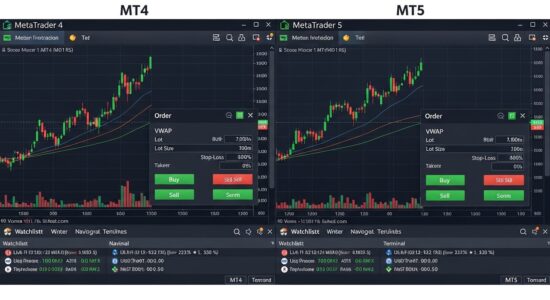
MetaTrader 5 represents the evolution of the world’s most popular trading platform. While MT4 remains widely used, MT5 offers significant improvements that make it the better choice for many traders. More timeframes, additional order types, an integrated economic calendar, and improved backtesting capabilities give MT5 distinct advantages.
If you’re deciding between MT4 and MT5, or your broker only offers MT5, this MT5 tutorial will teach you everything you need to know. We’ll cover the platform’s interface, how it differs from MT4, and how to use its advanced features effectively.
MetaTrader 5 launched in 2010 as the successor to MT4. Despite being newer, it hasn’t completely replaced MT4 due to differences in how the platforms handle certain functions. Understanding these differences helps you choose the right platform.
MT5 Advantages:
MT5 offers 21 timeframes compared to MT4’s 9. This includes M2, M3, M4, M6, M10, M12, M20, H2, H3, H6, H8, and H12 options. More timeframes give you greater precision in analyzing market structure.
The platform supports six order types instead of MT4’s four. Stop Limit orders, which MT4 lacks, allow more sophisticated entry strategies.
An integrated economic calendar displays upcoming news events, expected impact, and previous/forecast values directly in the platform. No need for external websites to track important releases.
Market depth (Level II pricing) shows available liquidity at different price levels. This transparency helps you understand where major orders sit and potential support/resistance zones.
MT5 handles multiple asset classes natively. While MT4 focuses on forex and CFDs, MT5 was designed from the ground up to support stocks, futures, and options alongside forex.
MT4 Advantages:
MT4’s simpler interface appeals to beginners. Fewer features mean less complexity when you’re learning to trade.
A massive library of custom indicators and Expert Advisors exists for MT4. Many haven’t been converted to MT5, so traders relying on specific custom tools often stick with MT4.
More brokers offer MT4 globally, though this gap is closing as MT5 adoption increases.
The Verdict:
For most traders, especially those starting fresh, MT5 is the better choice. The additional timeframes and tools outweigh MT4’s simplicity advantage. However, if your broker only offers MT4 or you need specific MT4-only custom indicators, MT4 remains perfectly viable.
The MT5 installation process mirrors MT4’s simplicity.
Step 1: Select Your Broker
Visit your chosen broker’s website. Navigate to their platforms or downloads section and locate MetaTrader 5.
Step 2: Download the Installer
Click the download button for your operating system (Windows or Mac). The download file is typically 2-3 MB.
Step 3: Run the Installation
Open the downloaded file and follow the installation wizard. Accept the license agreement and choose your installation location (default is usually fine). The installer will download additional files, which takes a few minutes.
Step 4: Launch MT5
After installation completes, MT5 opens automatically. If not, find the MT5 icon and double-click it.
Step 5: Log In
Enter your account number, password, and server (provided by your broker in your account confirmation email). Click “Login.” Your account balance appears in the Toolbox window at the bottom when successfully connected.
Understanding the MT5 Interface
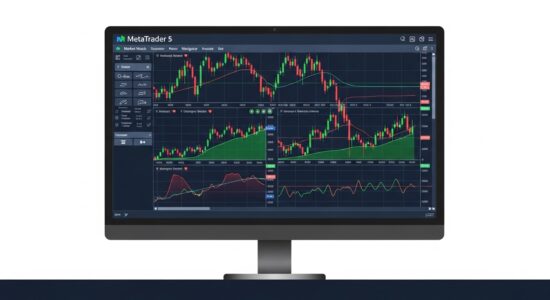
MT5’s layout is similar to MT4 but with additional features and windows.
Market Watch Window on the left displays available instruments and their current bid/ask prices. Right-click to add or remove symbols. Below Market Watch, you’ll find the Symbols window showing detailed contract specifications.
Navigator Window contains your accounts, indicators, Expert Advisors, and scripts. This is where you access tools for chart customization and automated trading.
Chart Window in the center displays price charts. Open multiple charts simultaneously, each appearing as a separate tab. MT5 handles charts more efficiently than MT4, allowing you to open more without slowing your computer.
Toolbox Window at the bottom shows active trades, account history, news, alerts, and the economic calendar. The calendar tab is unique to MT5 and displays upcoming economic events with their expected impact.
Toolbar provides quick access to common functions including chart management, timeframes, indicators, and drawing tools.
Time & Sales Window (if enabled) shows individual transactions as they occur, giving you insight into market activity and order flow.
MT5’s Advanced Features
Several MT5 features don’t exist in MT4 and provide distinct advantages.
Economic Calendar:
The integrated calendar displays upcoming news releases, central bank meetings, and economic data. Click the “Calendar” tab in the Toolbox window to view it.
Events are color-coded by importance: red for high impact, orange for medium, yellow for low. Click an event to see details including historical data, forecasts, and actual results once released.
This eliminates the need to check external websites for news schedules. You can set alerts for specific events and avoid trading during high-impact releases if that’s your preference.
Market Depth:
Market Depth (Level II) shows the order book with available buy and sell orders at different price levels. Access it by pressing “View” → “Market Depth” or right-clicking a symbol in Market Watch and selecting “Market Depth.”
This feature works best with stocks and futures where full depth data is available. For forex, many brokers provide limited depth information, but it still offers useful insights into immediate liquidity.
More Timeframes:
MT5’s 21 timeframes let you analyze market structure with greater precision. The H2 (2-hour) and H8 (8-hour) charts are particularly useful for swing traders wanting perspectives between the standard H1 and H4 charts.
Access timeframes through the “Period” menu or the toolbar. Not all timeframes appear on the toolbar by default; right-click the toolbar and select “Customize” to add your preferred periods.
Netting and Hedging Accounts:
MT5 supports two account types: netting and hedging. Netting accounts allow only one position per symbol (buy and sell orders on the same pair offset each other). Hedging accounts permit multiple positions on the same symbol, matching MT4’s behavior.
Check with your broker which account type they offer. US and some other jurisdictions only allow netting accounts due to regulations.
Opening Charts and Adding Indicators
Working with charts in MT5 is nearly identical to MT4, with some refinements.
Opening a Chart:
File → New Chart and select your instrument, drag a symbol from Market Watch onto the chart area, or click the “New Chart” button on the toolbar.
Changing Timeframes:
Click the desired period on the toolbar or use the “Charts” menu. MT5 remembers your timeframe preferences across sessions.
Chart Types:
Right-click the chart and select “Properties” (or press F8) to change between bars, candlesticks, and line charts. You can also adjust colors, grid settings, and visual properties.
Adding Indicators:
Click “Insert” → “Indicators” and choose from categories including Trend, Oscillators, Volumes, or Custom. Configure the indicator’s parameters in the settings window, then click OK.
After customizing a chart, save it as a template. Right-click the chart → “Template” → “Save Template.” Give it a descriptive name. Apply this template to any chart by selecting “Template” → “Load Template.”
Placing Trades on MT5
MT5’s order window offers more options than MT4, including additional order types.
Opening the Order Window:
Click “New Order” on the toolbar, press F9, or right-click a chart and select “Trading” → “New Order.”
Order Types:
MT5 supports six order types:
Market Execution executes immediately at the current price. Choose Buy or Sell based on your market direction.
Buy Limit enters a long position when price falls to your specified level (buying on a dip).
Sell Limit enters a short position when price rises to your specified level (selling on a rally).
Buy Stop enters a long position when price rises to your specified level (buying a breakout).
Sell Stop enters a short position when price falls to your specified level (selling a breakdown).
Buy Stop Limit and Sell Stop Limit combine stop and limit orders. When price hits your stop level, a limit order is placed at your specified price. This gives you more control over execution price during volatile conditions.
Setting Stop Loss and Take Profit:
In the order window, enter your desired stop loss and take profit levels. These can be entered as price levels or as points away from your entry price.
For guidance on setting appropriate stop loss distances, see our position sizing guide
Volume Selection:
Choose your lot size. Standard lots (1.00), mini lots (0.10), and micro lots (0.01) are typical options. Start small while learning.
Execution:
Review your order details, then click “Buy” or “Sell” for market orders, or “Place” for pending orders. Your position appears in the Toolbox window’s “Trade” tab.
Managing Open Positions
Once you have trades open, MT5 provides several management tools.
Viewing Positions:
Open positions display in the Toolbox window under the “Trade” tab. Each shows order number, time, symbol, type, volume, entry price, stop loss, take profit, current price, and unrealized profit/loss.
Modifying Orders:
Right-click your position and select “Modify or Delete Order.” Change stop loss or take profit levels, then click “Modify.”
You can also drag stop loss and take profit lines directly on the chart if they’re visible.
Trailing Stop:
Right-click your position, select “Trailing Stop,” and choose a distance in points. MT5 automatically adjusts your stop loss as price moves favorably, locking in profits while giving the trade room to run.
Partial Close:
MT5 allows partial position closing. Right-click your position, select “Close,” and enter a volume smaller than your full position. For example, close 0.50 lots of a 1.00 lot position to take partial profits while leaving half running.
Complete Close:
Right-click and select “Close” to exit the entire position at the current market price.
Common MT5 Problems and Solutions
These issues occur frequently with MT5. Here’s how to resolve them.
Problem: Invalid Account or No Connection
Solution: Verify your login credentials and selected server. Check your internet connection. Restart MT5. Contact your broker if problems persist.
Problem: Not Enough Money
Solution: Your trade size exceeds available margin. Reduce lot size, close other positions to free margin, or deposit more funds.
Problem: Market is Closed
Solution: You’re trying to trade outside market hours. Wait for the market to reopen (Sunday evening to Friday evening EST for forex).
Problem: Unsupported Order Type
Solution: Your broker may not support all MT5 order types. Check with them about which order types are available on your account.
Problem: Charts Not Updating
Solution: Check your internet connection. Ensure “Auto Scroll” is enabled (right-click chart → “Auto Scroll”). Press F5 to manually refresh chart data.
Problem: Economic Calendar Not Showing
Solution: The calendar requires internet connection to load data. If it’s blank, check your connection and restart MT5. Some brokers disable the calendar feature—contact them if it doesn’t work.
MT5 Mobile App
Like MT4, MT5 has mobile apps for iOS and Android providing full trading functionality on smartphones and tablets.
Download “MetaTrader 5” from the App Store or Google Play. Install and log in using your same account credentials.
The mobile interface differs from desktop but includes all essential features: charts, indicators, order placement, and position management. The economic calendar and news are also accessible on mobile.
Mobile MT5 is perfect for monitoring trades away from your computer and placing quick trades based on alerts. However, detailed multi-timeframe analysis is more difficult on small screens.
MT5 vs MT4: Which Should You Choose?
If your broker offers both, here’s how to decide:
Choose MT5 if:
You’re starting fresh (no MT4 habits to break)
You want more timeframes for precise analysis
The economic calendar appeals to you
You trade multiple asset classes beyond forex
You appreciate having the latest features
Choose MT4 if:
You need specific custom indicators only available for MT4
You’re already comfortable with MT4 and see no reason to switch
Your broker only offers MT4
You prefer MT4’s simpler interface
The Bottom Line:
Both platforms work excellently for forex trading. MT5 offers more features, but MT4’s proven track record and simplicity have merit. Choose based on your specific needs rather than which platform is “better” in the abstract.
Next Steps with MT5
Now that you understand MT5’s interface and features, focus on developing your trading skills.
Practice on a demo account until order placement feels natural. Experiment with the additional timeframes to see if they improve your analysis. Use the economic calendar to avoid trading during high-impact news if that suits your strategy.
Customize your charts with indicators and templates that match your trading approach. Save templates for different setups (scalping template, swing trading template, etc.) to switch between them quickly.
Remember that the platform is just a tool. Your success depends on developing a sound trading strategy, managing risk properly, and maintaining discipline.
For identifying key support and resistance levels to find trade opportunities, see our support and resistance guide
If you’re new to forex trading entirely, build your foundation with our beginner’s guide
MT5 provides powerful tools for analyzing and trading the markets. Take time to explore its features, practice on demo accounts, and gradually you’ll develop the comfort and efficiency that comes with experience. The platform’s advanced capabilities give you every tool you need to implement your trading strategy effectively.